
WHAT ARE NOTIFICATIONS?
HSI's Learning Management System (LMS) and Chemical Management System offer 2 methods of providing notifications to your users. Administrators can customize and edit notification messages. Most Notifications offer both methods of delivery and may be toggled on and off on the Manage Notifications page.
- Email - Email messages sent to users with relevant information specific to them.
- In-App Alerts - Messages that users will be prompted to read when they log in to the system.
CATEGORIES OF NOTIFICATIONS
The HSI-LMS module offers different categories of notifications related to the modules you are using. Click on the category name to go to the list of notifications available for each category.
- System - Used to communicate system-level information to users such as login credentials, etc.
- Training - Used to communicate training related info such as New Training Available, Training Coming Due, etc. (Note: Training Notifications are only available to Users with the Training module.)
- Chemical Management - used to communicate Chemical Management and SDS-related info. (Note: Chemical Management Notifications are only available to Users with the Chemical Management module.)
HOW NOTIFICATIONS WORK
Templates
Notifications have been created with template text for your convenience.
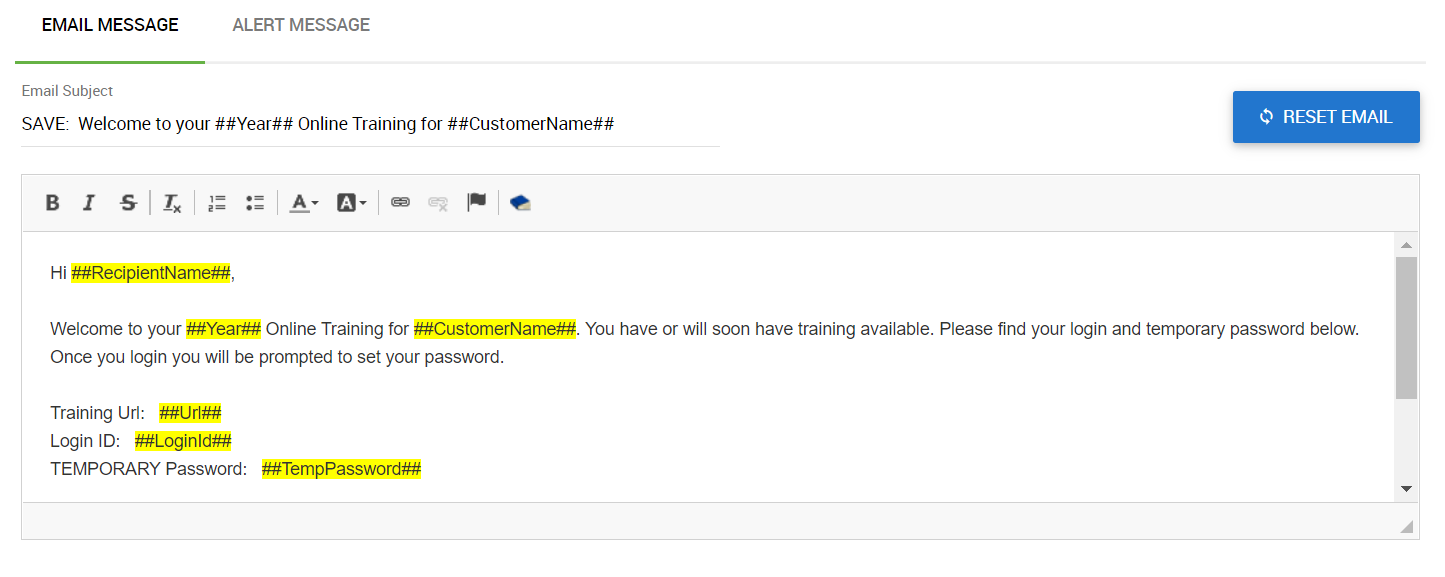
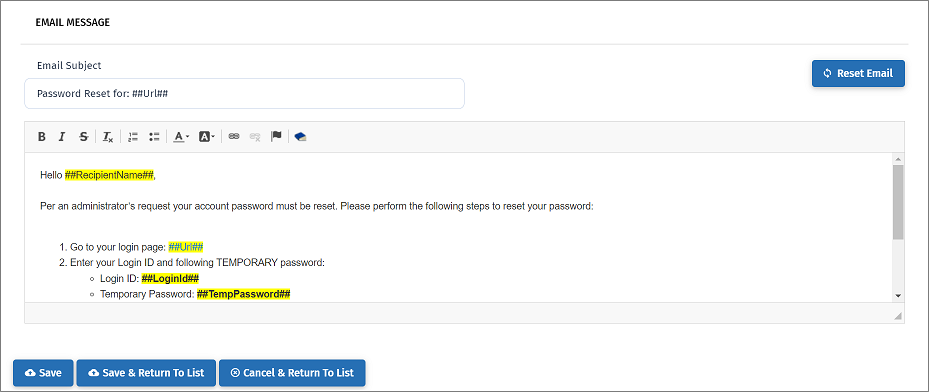
You may edit the entirety of the message so it matches your company voice, insert your Safety Program goals, slogans, etc. You will also notice the Placeholders (highlighted in yellow below) that are an important part of making the message specific to the recipient.
Triggers
Notifications can be triggered by an event in the system, by a scheduled day and time arriving or by a scheduled date arriving.
Example 1. You may opt to send a one-time notification to all your members that contains their Login Credentials. This type of notification would be triggered by the scheduled day and time arriving.
Example 2. You may opt to receive an email notification every time a Member completes a course. This type of notification would be triggered in real time when the Completion event is recorded and be sent in the next notification queue dispatch (every 30 minutes).
Example 3. You may opt to have all Members notified when new training becomes available. This type of notification would be triggered by a script that queues up and sends notifications overnight.
Placeholders
To make notifications relevant to the recipient we use Placeholders, or merge fields, to insert data specific to the recipient, such as their name, their Group(s), list of their Training Requirements, etc.
These placeholders are signified by the hashed values in the notification (see yellow highlights in the image). If the values are deleted from the template message the merged data will be omitted.
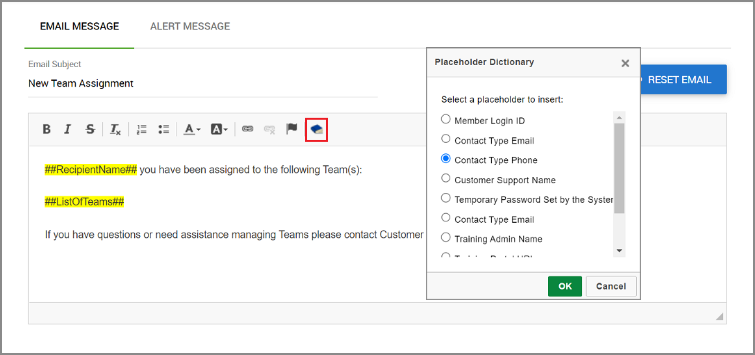
Click on the book icon, highlighted in red below, to view the Placeholder Dictionary and select placeholders for use in your Notification message. (Note: This icon may not be available to all users).
Contact Types
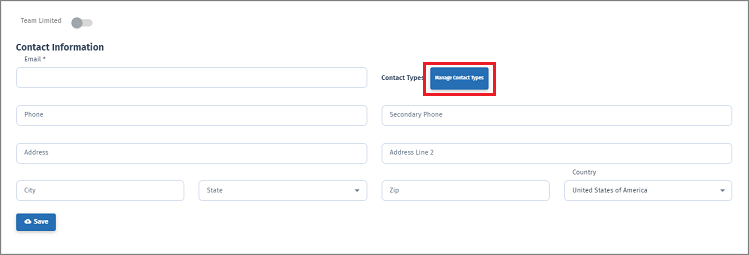
On the Administrator profile page, near the bottom, is a "Contact Types" button.
If that Administrator is to be considered the primary or secondary point of contact for Customer Service or other types of Support, indicate that with this tool.
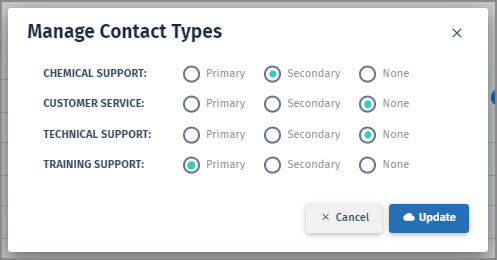
When notifications are sent out, and the placeholder indicates "Contact Type", it will fill with the contact information for that particular Administrator.
ENABLE NOTIFICATION MESSAGES
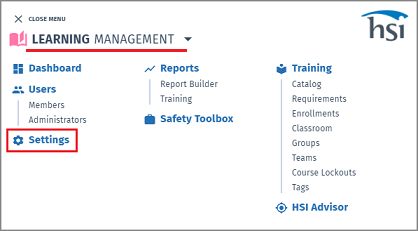
- In the Learning Management System, select SETTINGS.
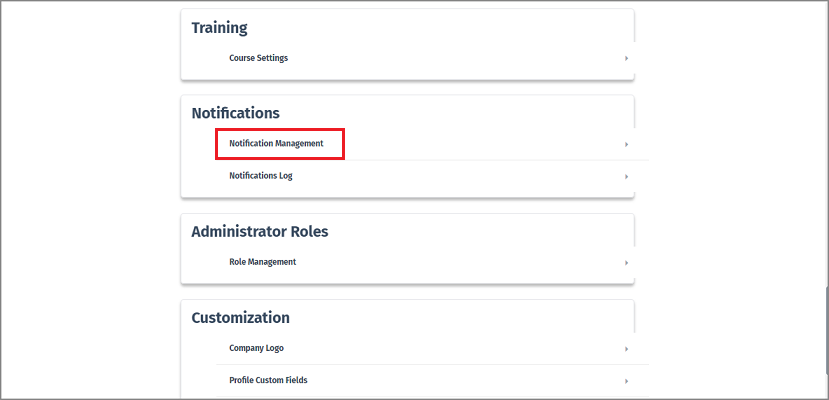
- Scroll down to Notifications section and click on Notification Management.
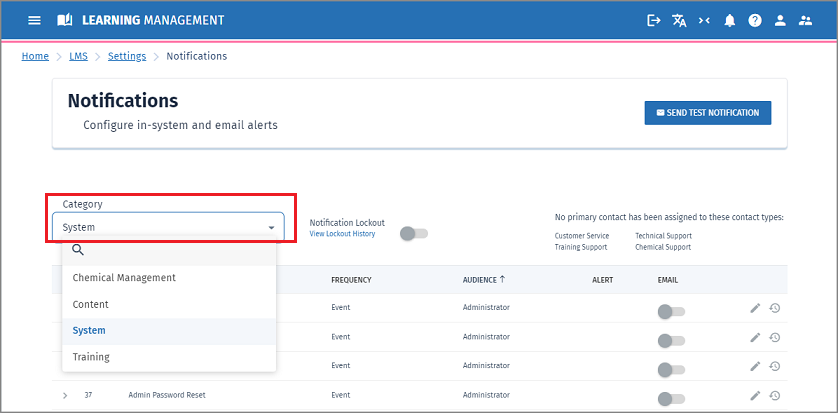
- Select the Notification Category from the dropdown menu.
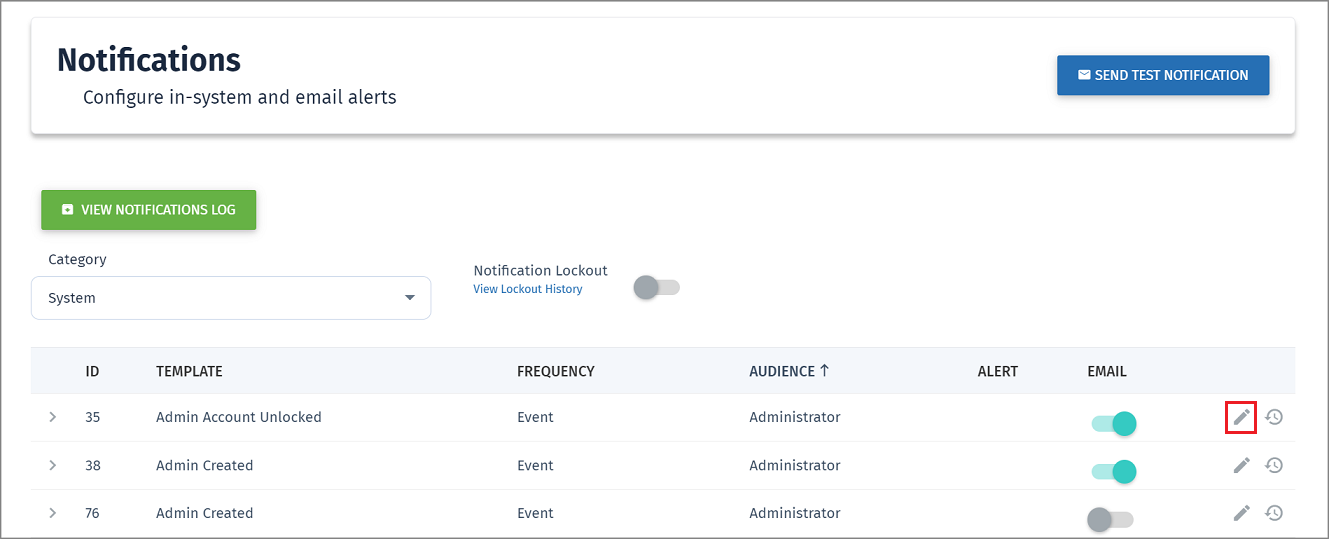
- To view or edit a notification message, click on the pencil icon inline with the title.
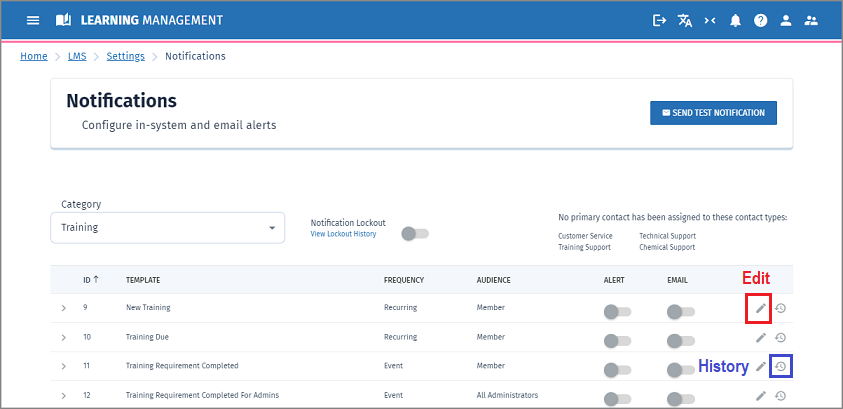
- To view the notification history, click on the clock icon.
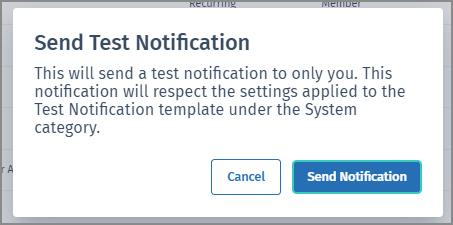
- To ensure you will receive notifications, click on "Send Test Notification" button in the upper right corner.
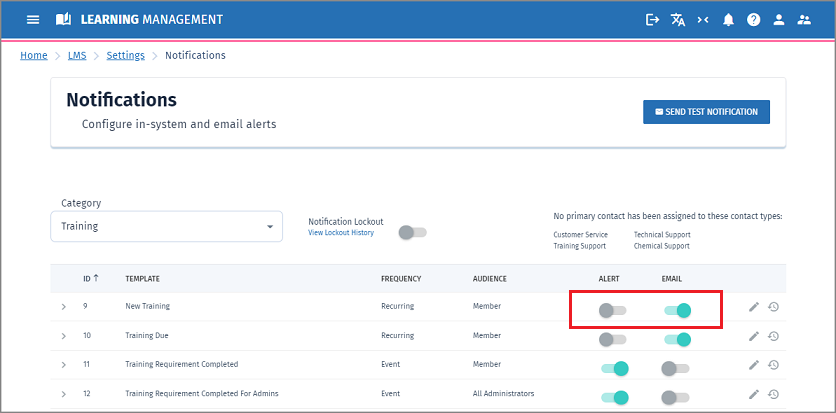
- Use the toggles to determine whether or not the notifications will be sent when triggered. Green indicates the notification will be delivered, either via email or an in-app alert.
EDIT A NOTIFICATION MESSAGE
- In the Learning Management System, select SETTINGS.
- Scroll down to Notifications section and click on Notification Management.
- Select the Notification Category from the dropdown menu.
- To edit a notification message, click on the pencil icon inline with the title.
- Click on the notification message text and make changes as needed.
- Click Save.
- To reset the email text to default, click "Reset Email" button.
DISABLE NOTIFICATIONS
- In the Learning Management System, select SETTINGS.
- Scroll down to Notifications section and click on Notification Management.
- Select the Notification Category from the dropdown menu.
- Click on the toggles to disable the notification. A gray toggle indicates no notification will be sent via that method.
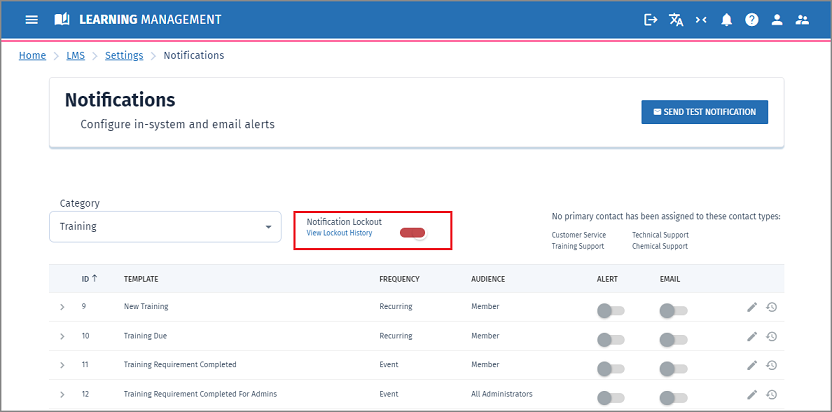
- To disable ALL notifications from being sent out, click the Notification Lockout toggle.
Comments
0 comments
Please sign in to leave a comment.